Put your new website on your domain at IONOS
About 10 minutes. You change three settings at IONOS. Your domain stays where it is and your email keeps working. Your panel checks each setting for you as you make it.
You need one thing: the sign-in for your IONOS account (your customer ID or email address, and your password). Keep your SiteSmith panel open in another tab: in step 8 you copy your site's address from its Domain tab.
The three settings
| Type | Name | Value |
|---|---|---|
| CNAME | www | your site's address — copy it from the Domain tab of your panel |
| A | @ | 137.66.50.77 |
| AAAA | @ | 2a09:8280:1:0:0:1a0:bb93:0 |
@ means the domain itself; some screens call it the "host" or leave it blank. Leave every other setting exactly as it is: your email depends on them.
Step by step
Sign in to IONOS
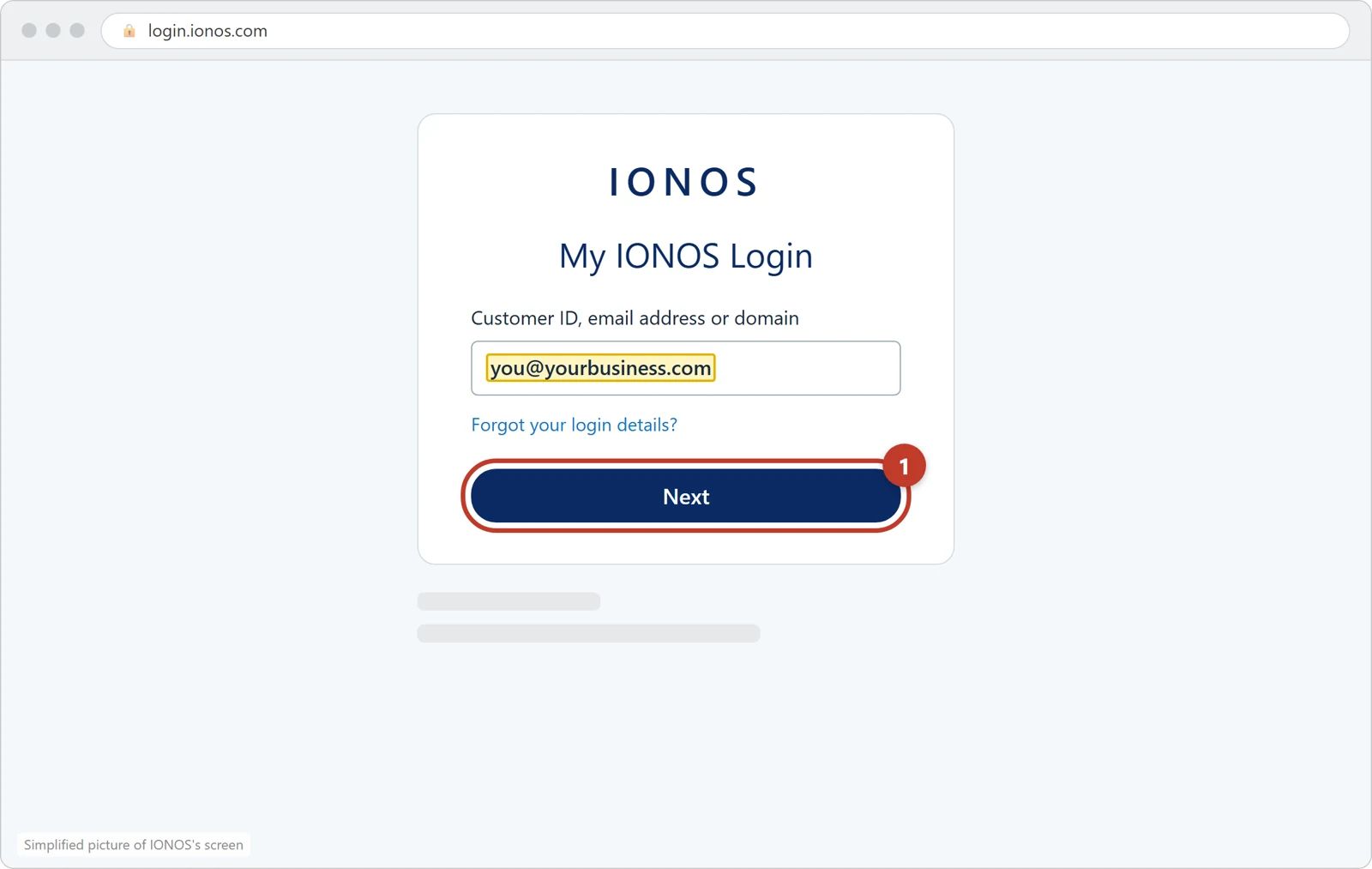
Go to login.ionos.com. Type your customer ID or email address and click Next. Then type your password and sign in.
Tap the picture to see it bigger. Open Domains & SSL
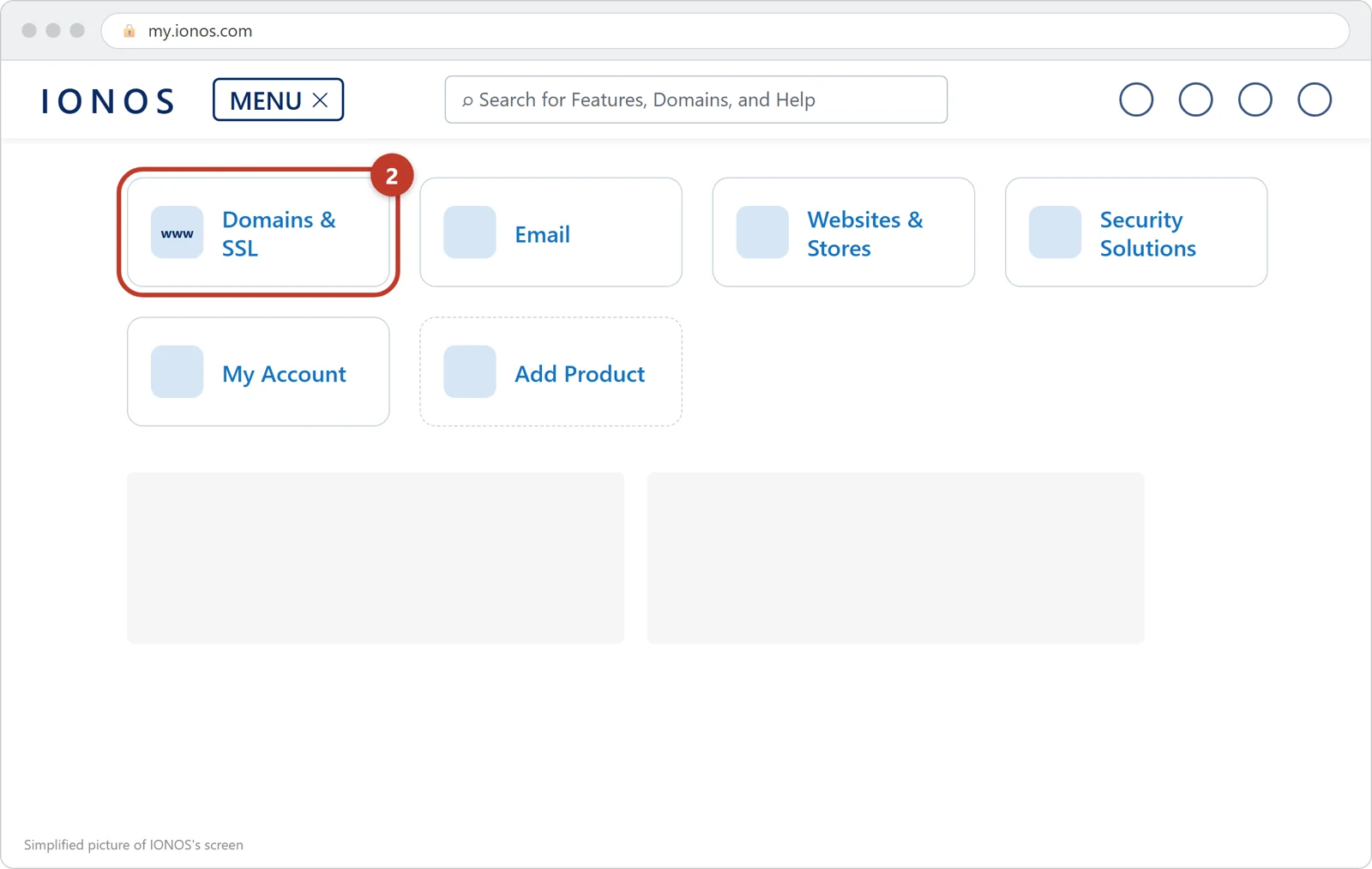
Click MENU at the top left, then click Domains & SSL. You see the list of your domains.
Tap the picture to see it bigger. Open your domain's DNS settings
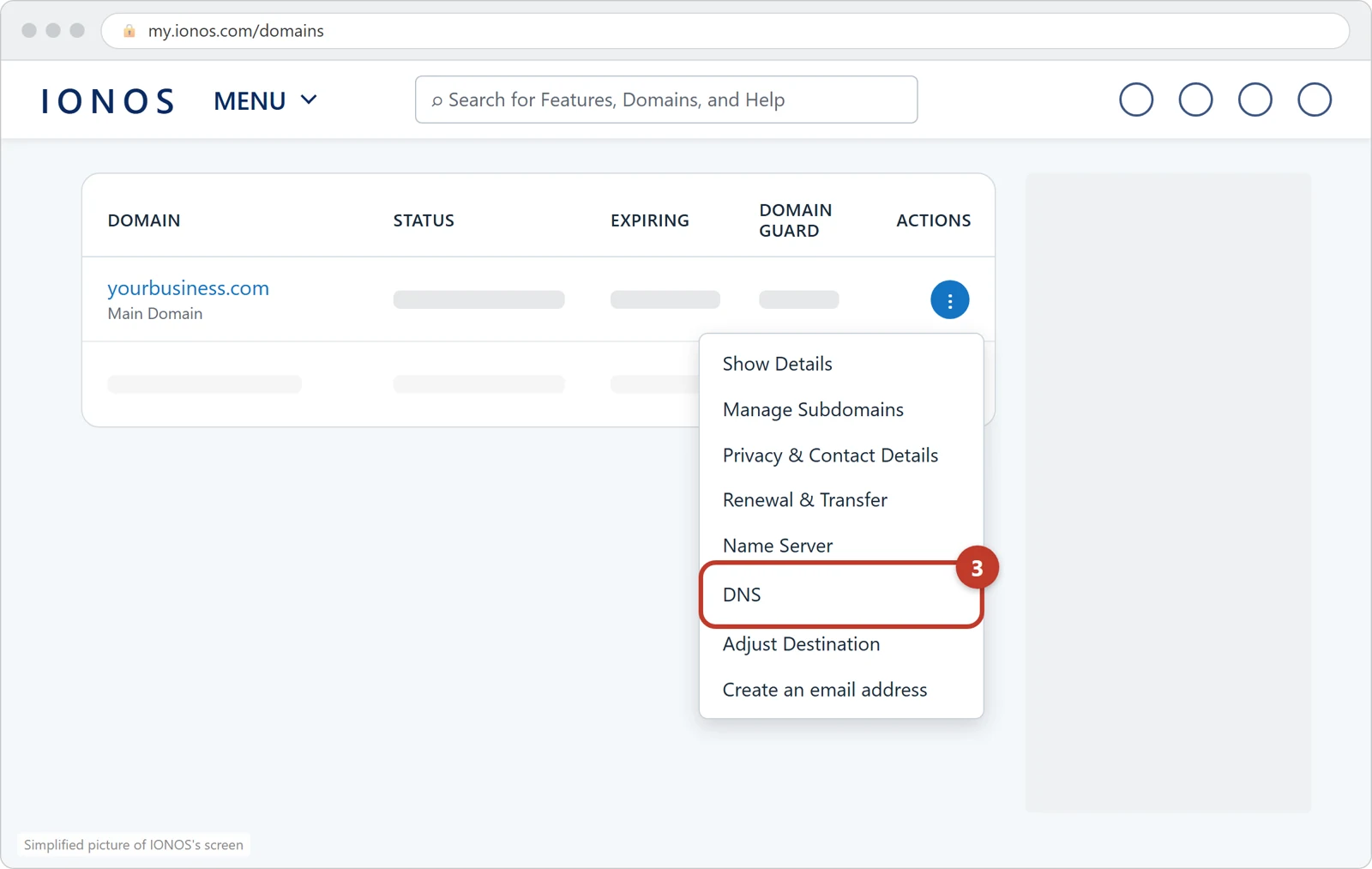
In the line of your domain, click the round button with three dots under ACTIONS. In the menu that opens, click DNS. A list of your domain's settings opens.
Tap the picture to see it bigger. Open the A setting for your domain
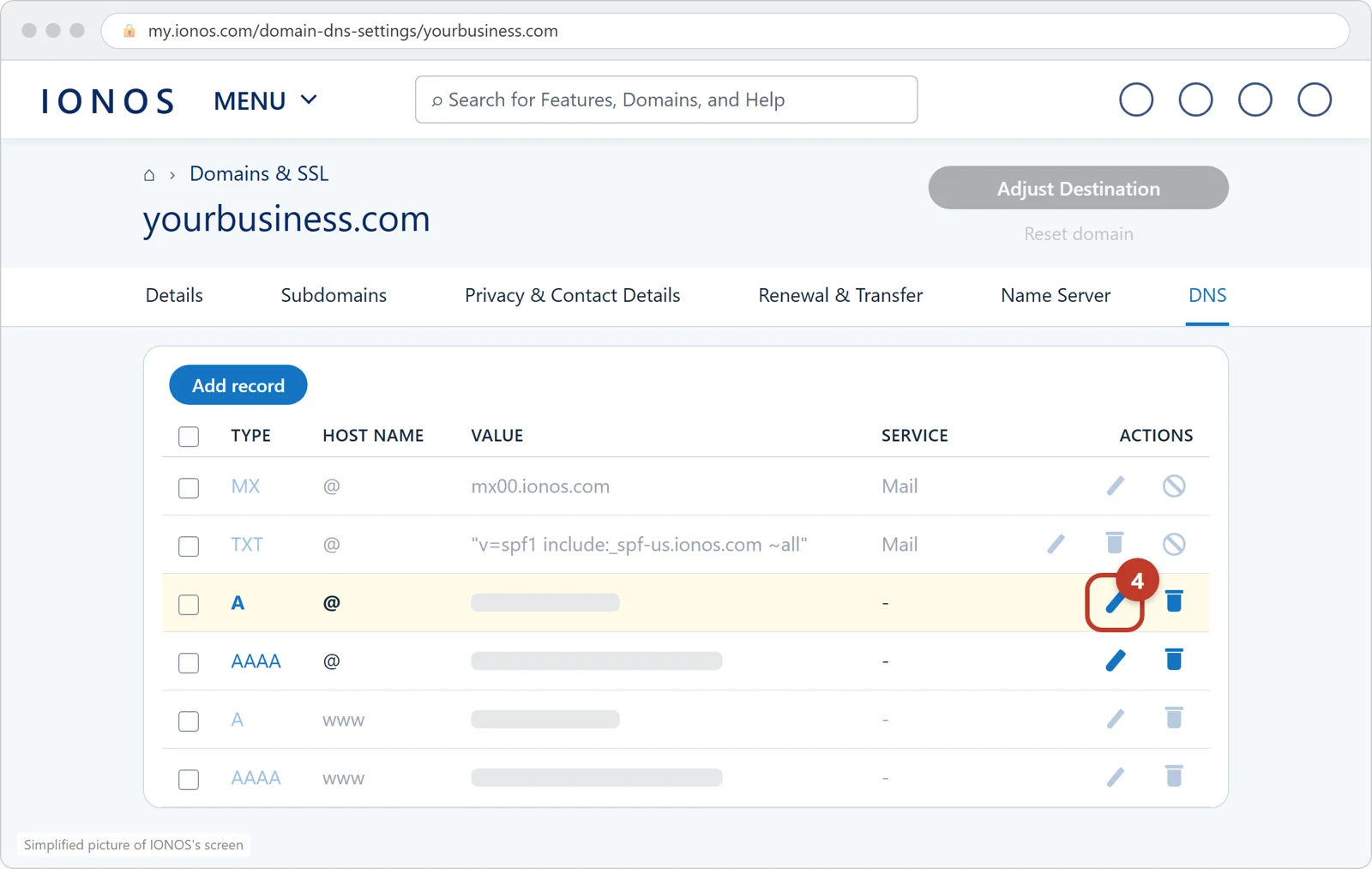
Find the line whose TYPE is A and whose HOST NAME is @. Click the pencil on that line. If there is no such line, click Add record, then A, and type @ as the host name.
Tap the picture to see it bigger. Type the A address and save
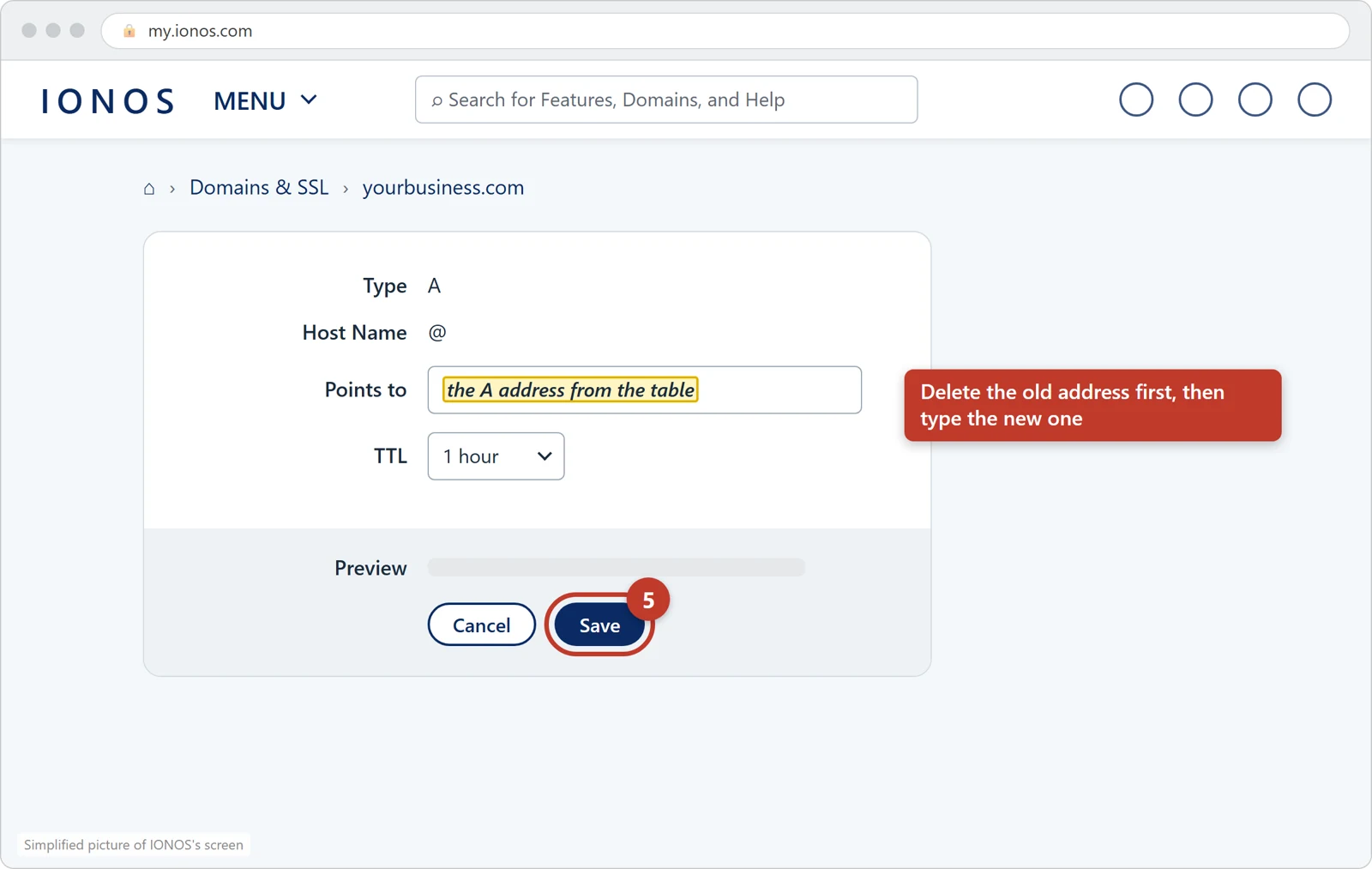
In the box Points to, delete the old address and type the A address from the table above. Click Save. If IONOS warns that this ends your domain's connection to an IONOS service, such as your old IONOS web space or a forwarding, confirm it: your new site takes its place.
Tap the picture to see it bigger. Do the same for the AAAA setting
Back in the list, find the line whose type is AAAA and whose host name is @. Click its pencil, delete the old address in Points to, type the AAAA address from the table above, and click Save. If there is no such line, click Add record, then AAAA, and type @ as the host name.
Remove the old www lines
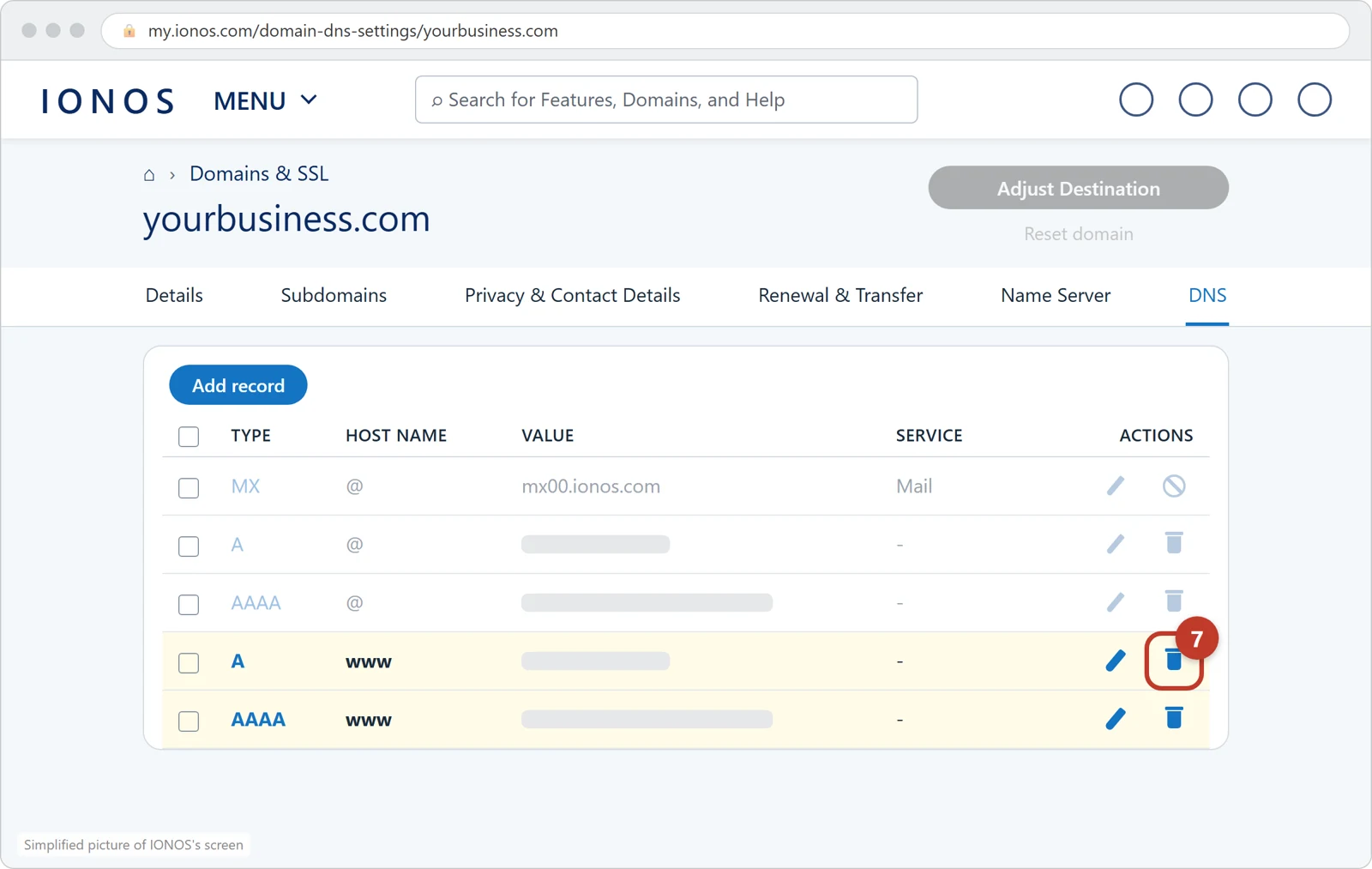
Find any line of type A or AAAA whose host name is www. Click the bin on that line, then click Delete to confirm. Do it for each such line, and also for a CNAME line for www if there is one. These old lines would block the new www setting. Delete nothing else.
Tap the picture to see it bigger. Add the www setting
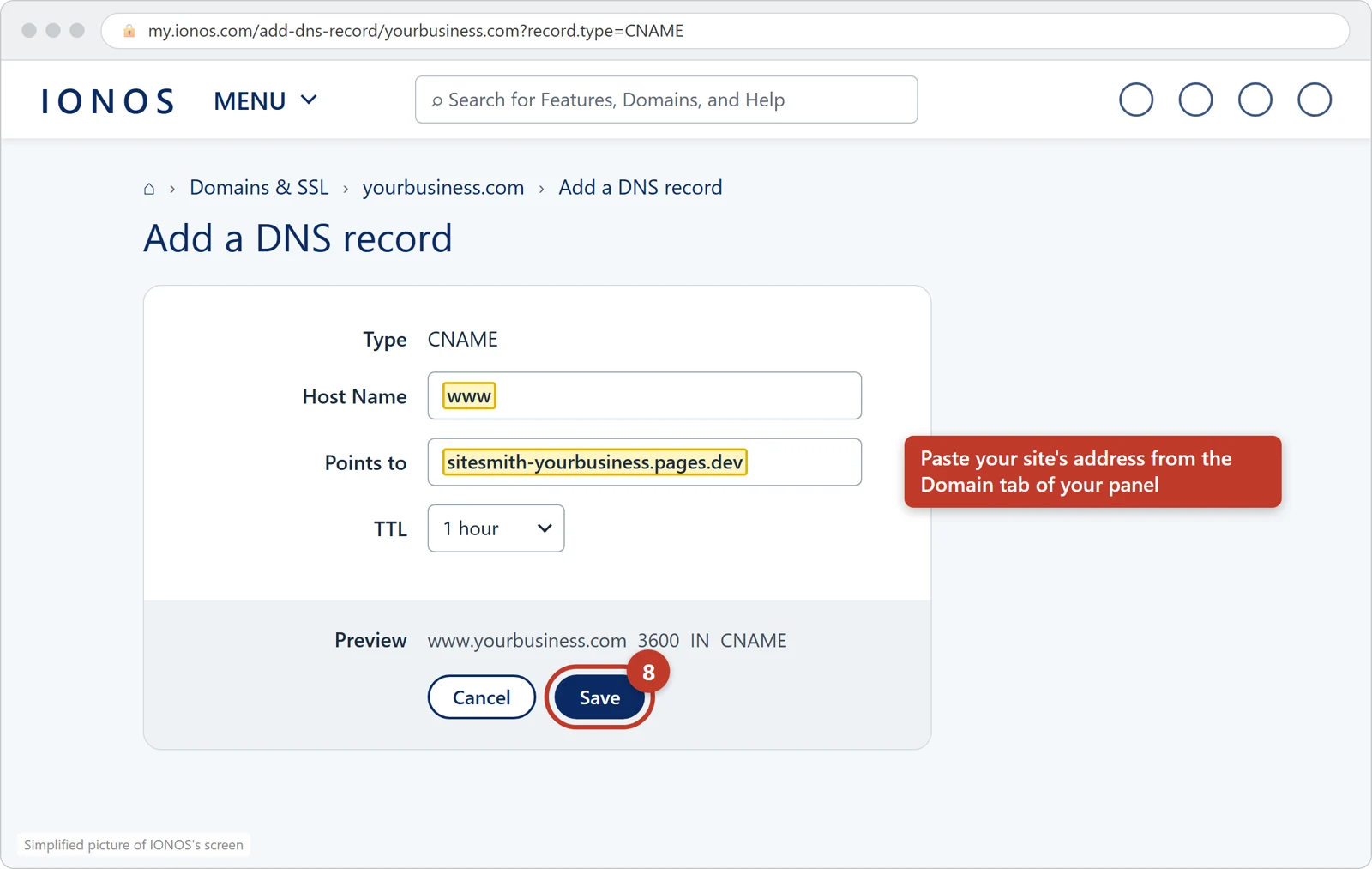
Click Add record at the top of the list, then click CNAME. In Host Name type www. In Points to paste your site's address from the Domain tab of your panel. Leave TTL as it is and click Save.
Tap the picture to see it bigger. Check it in your panel
Open the Domain tab in your panel and click Check my settings again. Each setting says done once the internet sees it. IONOS uses your changes at once; elsewhere it can take up to an hour. We email you the moment your new site shows on your domain.
Good to know
Do not change your Name Server settings, or any line of type MX or TXT, or any line whose service is Mail. Those carry your email.
When you add a new A or AAAA line for @, IONOS may offer to add the same line for www as well. Say no to that (the link is called Do not add DNS record for www): www gets its own setting in step 8.
If your current website is made with IONOS's own website builder (MyWebsite or Website Builder), an IONOS Online Store, or an app from the IONOS App Center, IONOS asks you to disconnect the domain from it before the A setting can change. Ask in your panel's Help tab and we sort it out with you.
If IONOS will not save the www setting, open the Subdomains tab of your domain. If www is not listed, click Create Subdomain, type www, click Save, and try step 8 again. If it still will not save (for example because a www line has no bin), write to us in the Help tab.
Stuck, or not sure?
Open the Help tab in your panel and write what you see, in your own words. We answer within minutes and walk you through it.
Changed your mind? Your panel keeps today's settings. Put them back at IONOS and your old website returns, usually within an hour. If you turned off a forwarding or a connection on the way, turn it back on too.
Based on IONOS's own help pages: Changing a Domain's IPv4/IPv6 Address (A/AAAA Record), Configuring a CNAME Record for a Subdomain, Connecting your domain to Vercel, Modifying a Domain's Destination, Avoiding DNS Conflicts, Managing TXT Records. The pictures are our own simplified drawings of IONOS's screens, not copies of them; IONOS's screens may look slightly different. IONOS is a trademark of its owner; SiteSmith is not affiliated with IONOS. Last checked 2026-10-25.