Put your new website on your domain at your web host (Bluehost / HostGator)
About 10 minutes. You change three settings at your web host (Bluehost / HostGator). Your domain stays where it is and your email keeps working. Your panel checks each setting for you as you make it.
You need your Bluehost sign-in: the User ID and password you use to pay for your hosting. Keep your SiteSmith panel open in another tab, so you can copy your site's address from its Domain tab.
The three settings
| Type | Name | Value |
|---|---|---|
| CNAME | www | your site's address — copy it from the Domain tab of your panel |
| A | @ | 137.66.50.77 |
| AAAA | @ | 2a09:8280:1:0:0:1a0:bb93:0 |
@ means the domain itself; some screens call it the "host" or leave it blank. Leave every other setting exactly as it is: your email depends on them.
Step by step
Sign in to Bluehost
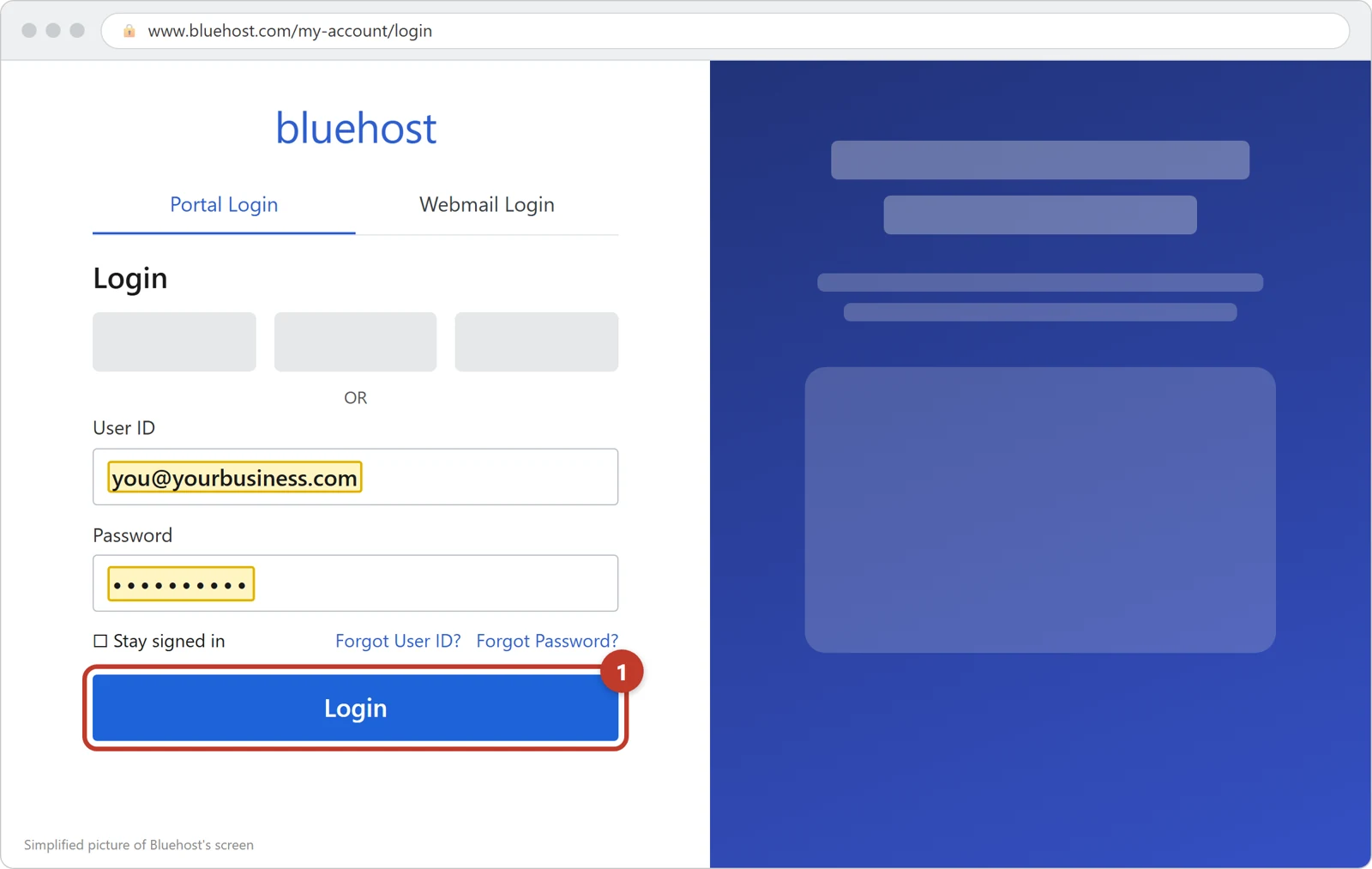
Go to bluehost.com and click Login at the top right. Type your User ID and Password, then click Login.
Tap the picture to see it bigger. Open Domains
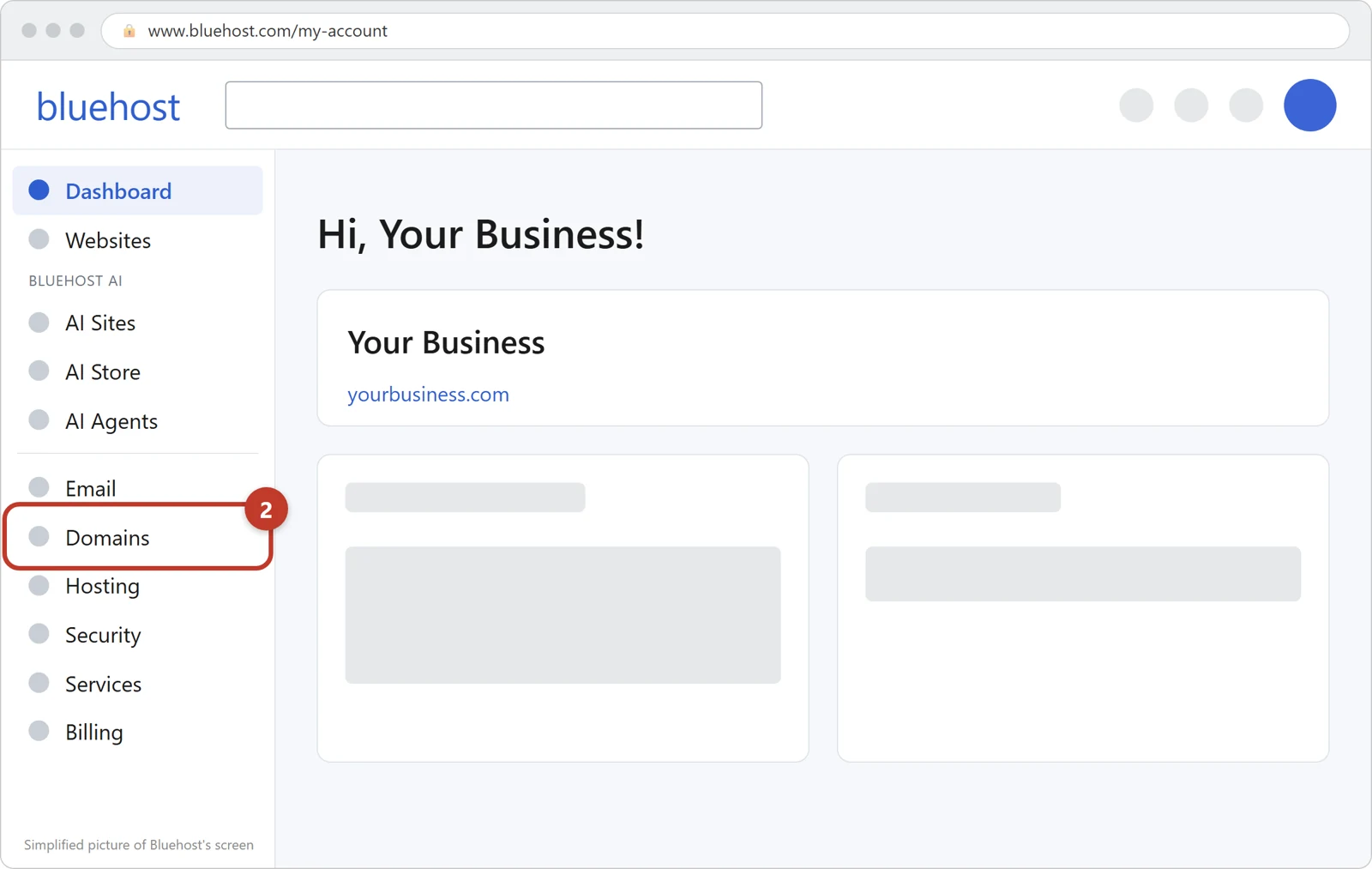
In the menu on the left, click Domains. If you have more than one domain, a list opens: click yourbusiness.com (your own domain) in that list.
Tap the picture to see it bigger. Open the DNS tab
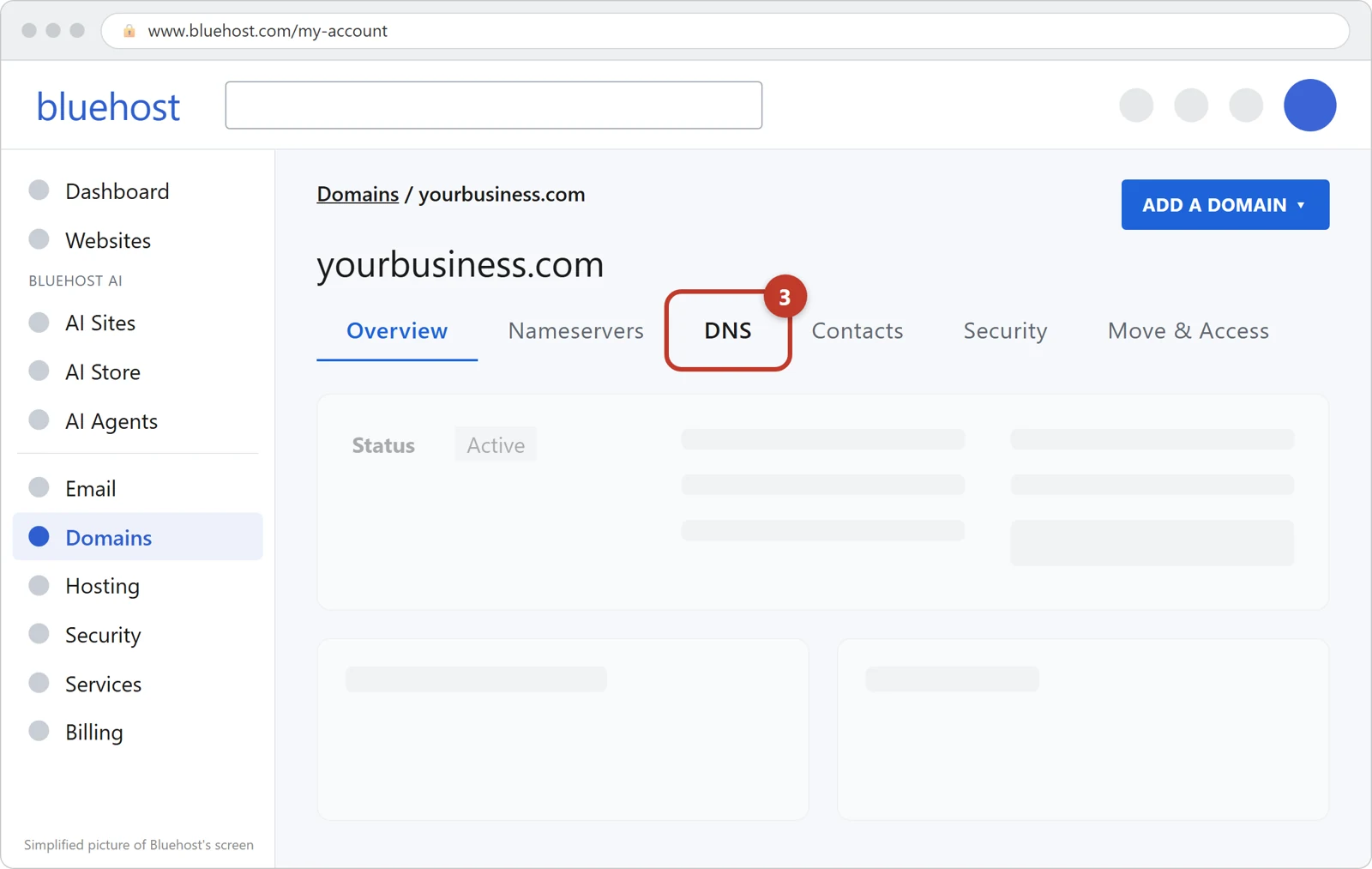
Your domain's page opens, with tabs across the top. Click DNS. You see Manage Advanced DNS Records, a yellow Caution box and a list of lines. That caution is why you change only the three lines in the table above, and leave every other line as it is.
Tap the picture to see it bigger. Open the www line
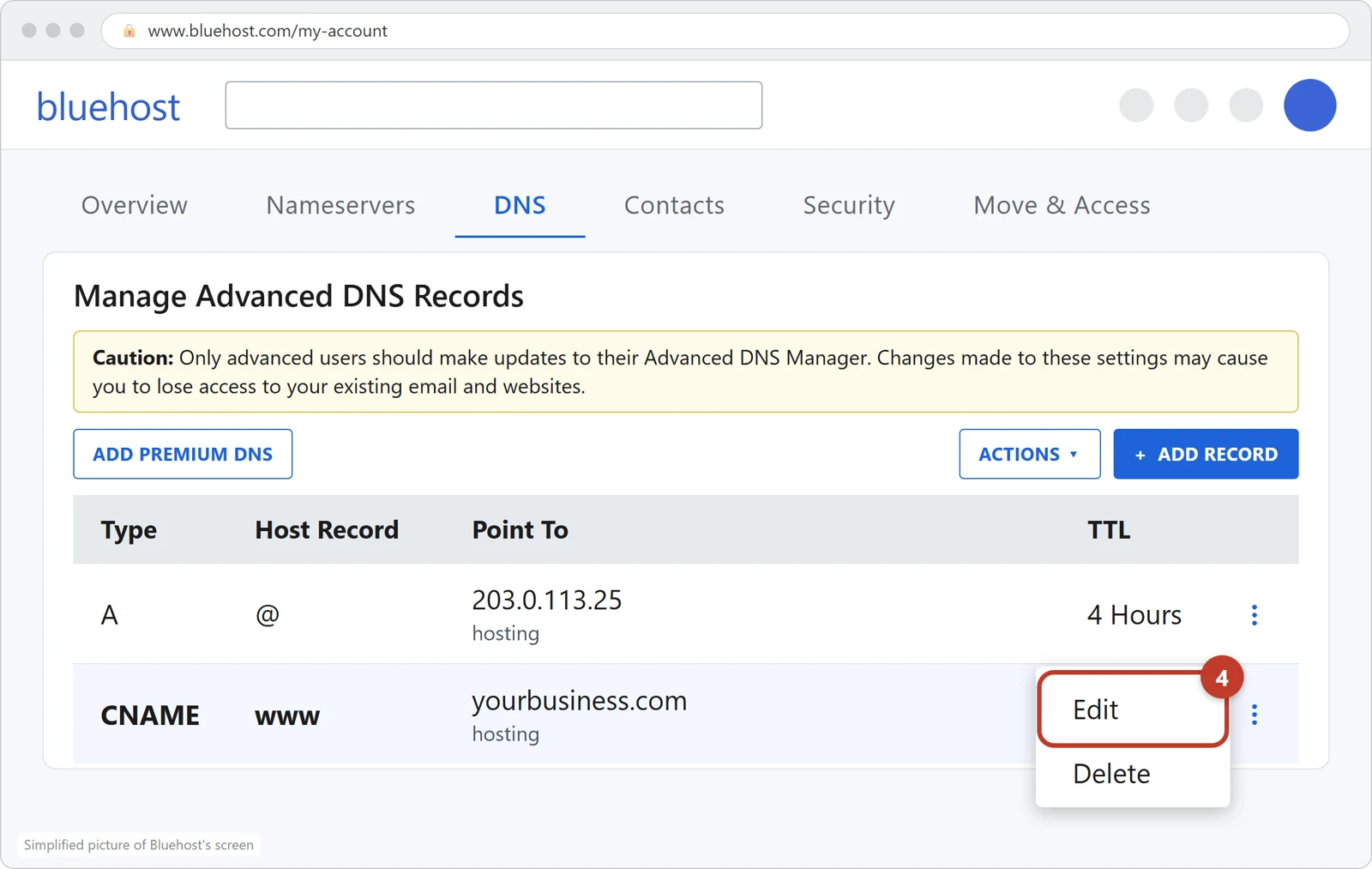
In the list, find the line with CNAME under Type and www under Host Record. At Bluehost it usually points to your own domain name. Click the three dots ⋮ at the right end of that line, then Edit. A small window opens.
Tap the picture to see it bigger. Change the www line
In the box Alias to, delete what is there and paste your site's address from the Domain tab of your panel. Leave Type, Refers to and TTL as they are. Click EDIT to save.
No www line in the list? Click + ADD RECORD and fill it in the same way: Type CNAME, Refers to www.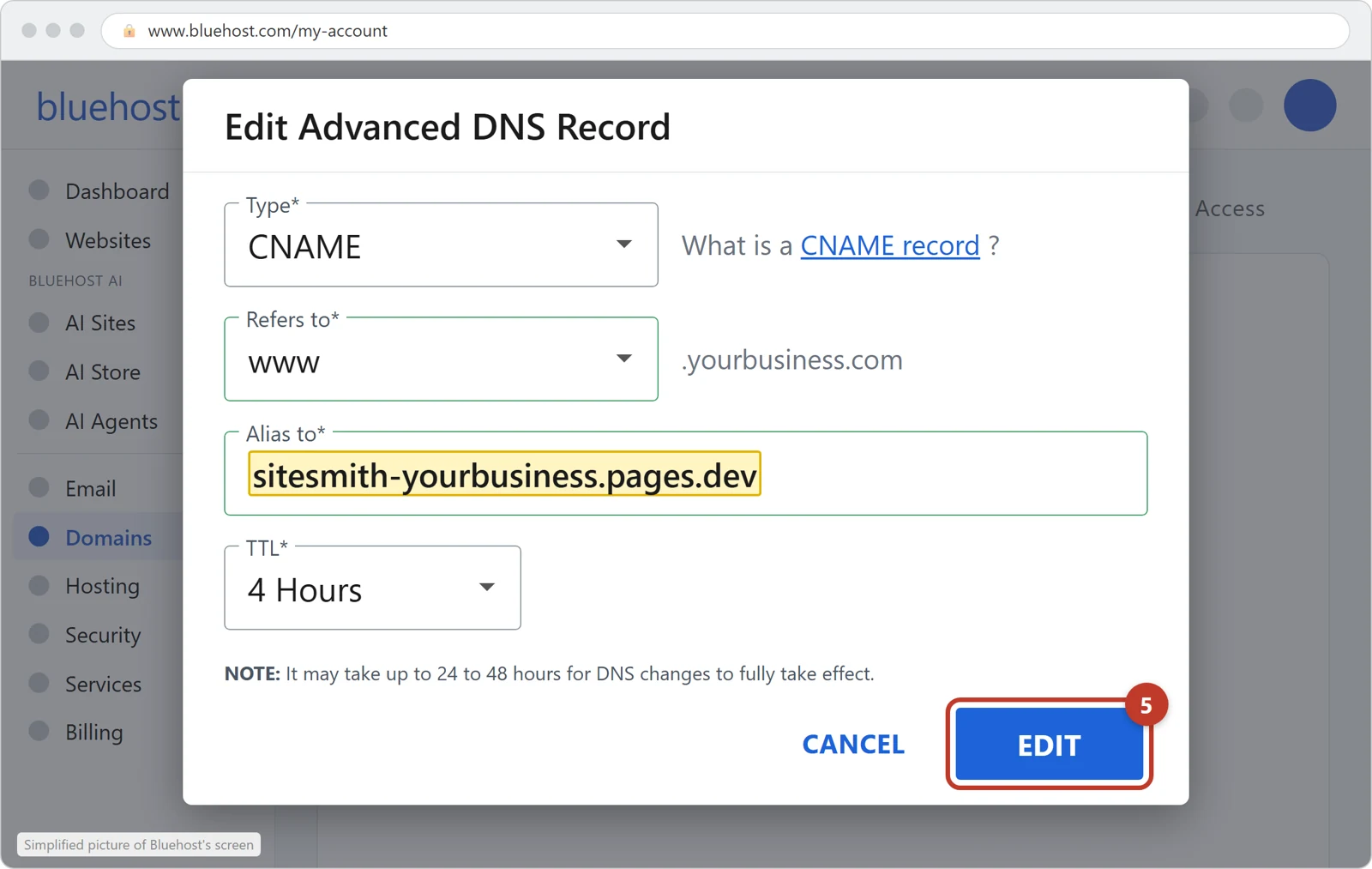
Tap the picture to see it bigger. Change the A line for the domain itself
Find the line with A under Type and @ under Host Record. Click its three dots ⋮, then Edit. In Points to, delete the numbers and type the A value from the table above. Click EDIT.
Two A lines with @? Change one, then delete the other: three dots, Delete, and Delete again to confirm. Leave A lines with other names, like mail or ftp, as they are.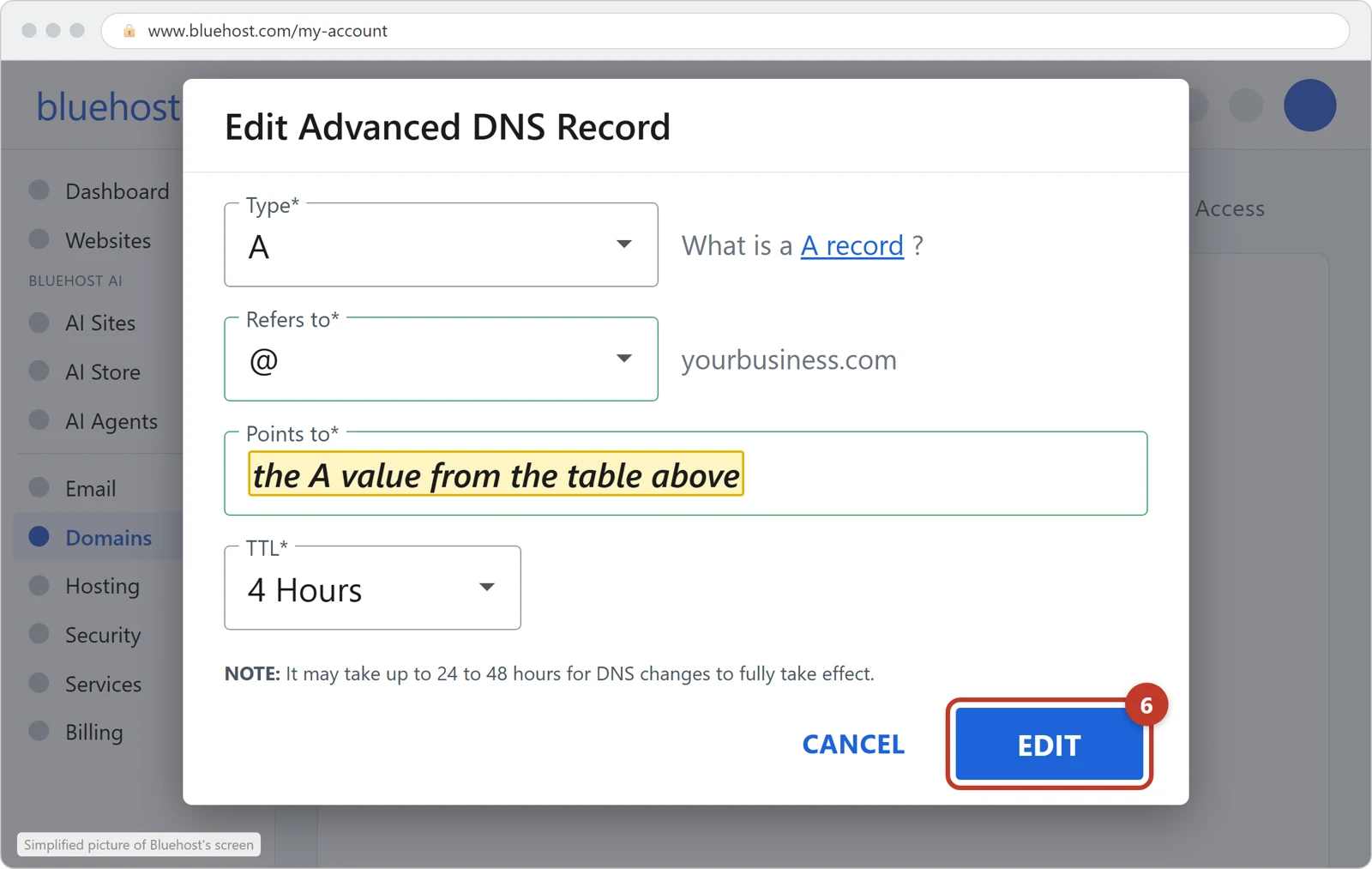
Tap the picture to see it bigger. Add the AAAA line
Click + ADD RECORD. If Bluehost asks whether you want one record or several, choose one (Single). Set Type to AAAA. Under Refers to, choose @. In Points to, type the AAAA value from the table above. Leave TTL as it is and click ADD.
Is there already an AAAA line with @ in the list? Then change that one instead: three dots, Edit.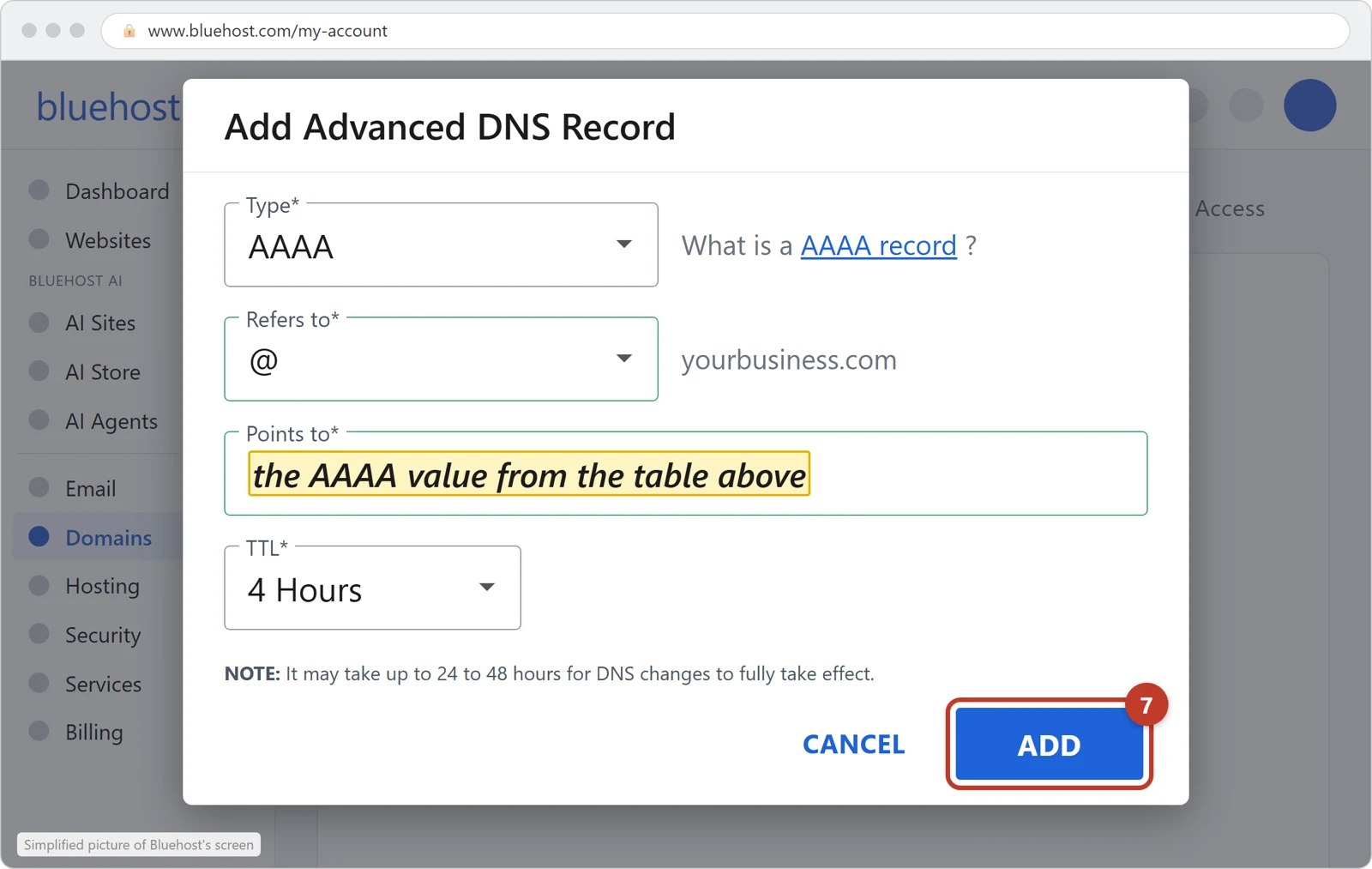
Tap the picture to see it bigger. Check it in your panel
Go back to your panel, open the Domain tab and click Check my settings again. Each setting says done once the internet sees it, often within minutes, sometimes up to an hour, even though Bluehost's window mentions 24 to 48 hours. We email you the moment your new site shows on your domain.
Good to know
Is your email at Bluehost too? Then your panel may ask you to set only the www record for now. Please do just that one; we contact you about your email before the other two.
On HostGator, HostMonster, JustHost, iPage or FatCow the same three settings are under Domains → DNS, or in Zone Editor in cPanel. Ask in your panel's Help tab and we walk you through your screen.
Do not change your nameservers, or any line of type MX or TXT. Those carry your email.
Keep your Bluehost hosting until your new site shows on your domain. If your email is at Bluehost, keep the plan that carries it.
Stuck, or not sure?
Open the Help tab in your panel and write what you see, in your own words. We answer within minutes and walk you through it.
Changed your mind? Your panel keeps today's settings. Put them back at your web host (Bluehost / HostGator) and your old website returns, usually within an hour. If you turned off a forwarding or a connection on the way, turn it back on too.
Based on Bluehost's own help pages: Guide to the DNS Tab in the Bluehost Portal, How to Log into the Bluehost Portal, How to Access Domain Manager Without Hosting Account, How to Manage DNS Records in cPanel, How to Edit MX Records. The pictures are our own simplified drawings of Bluehost's screens, not copies of them; Bluehost's screens may look slightly different. Bluehost is a trademark of its owner; SiteSmith is not affiliated with Bluehost. Last checked 2026-10-25.